Webhooks (TradingView → Bot)
Webhooks allow TradingView alerts to be sent to external services, bots, or APIs for automation. This guide covers how webhooks can be configured and used with Signal Pilot indicators.
Educational Purpose
This guide presents webhook integration for educational and automation purposes. Automated trading carries significant risks. This is not financial advice.
📡 What Are Webhooks?
Webhooks are automated HTTP POST requests sent from TradingView to a URL you specify when an alert triggers. Common uses include:
- Notifications: Send alerts to Discord, Telegram, or Slack
- Logging: Record alerts in a database or spreadsheet
- Automation: Trigger actions through custom APIs
- Testing: Monitor alert frequency and conditions
✅ Prerequisites
Before configuring webhooks, the following items are typically needed:
- A paid TradingView plan (Essential, Plus or Premium): Free accounts do not have webhook access
- Webhook endpoint URL: A service that receives HTTP POST requests (e.g., Discord webhook, custom server, automation platform)
- Signal Pilot indicator: Configured and added to your chart
- Basic JSON knowledge: Helpful for customizing message payloads (optional)
🔧 Step-by-Step Setup
Step 1: Get Your Webhook URL
The webhook URL depends on where alerts are being sent:
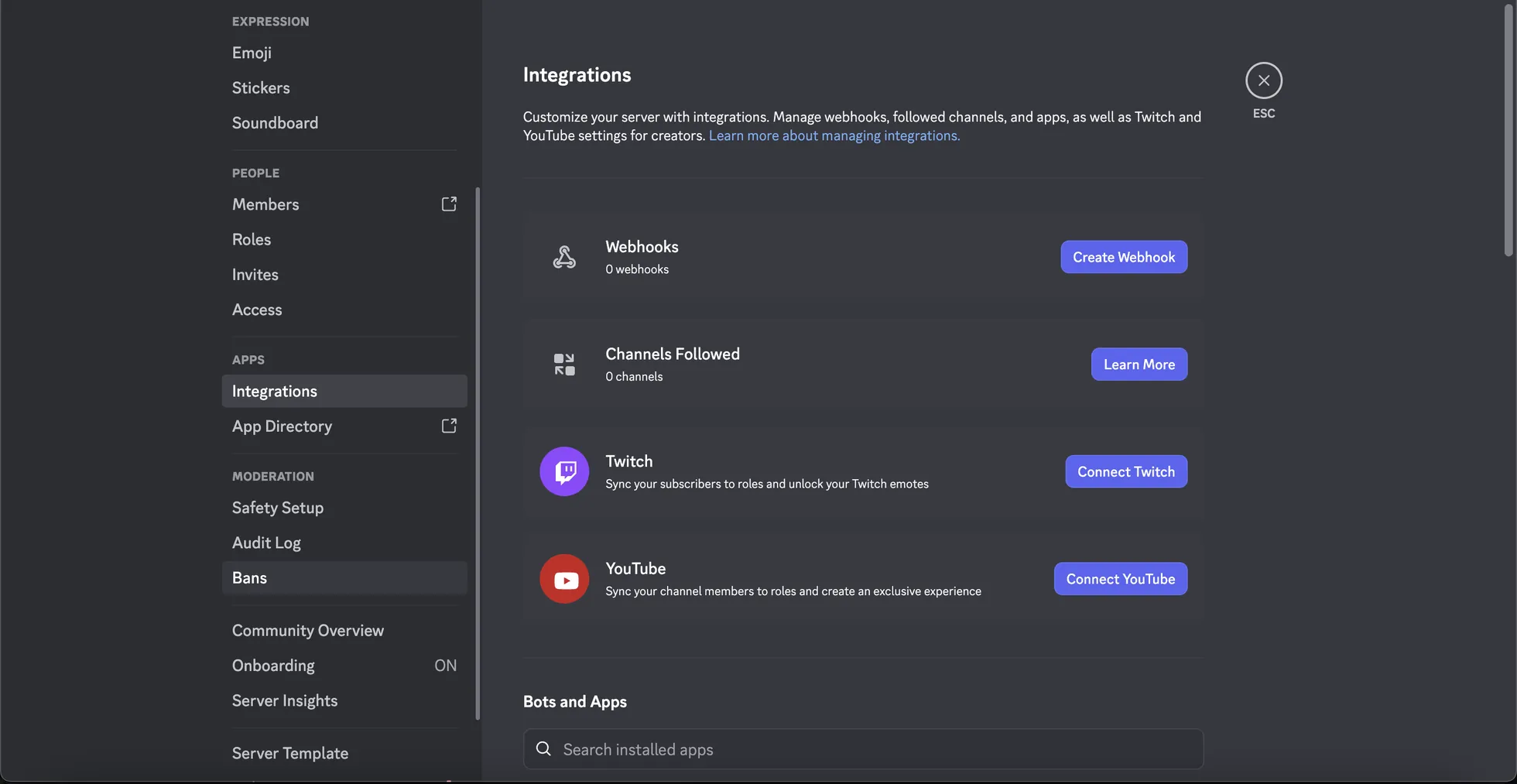
Discord Webhook
- In Discord, go to Server Settings → Integrations → Webhooks
- Click "New Webhook"
- Configure name and channel
- Copy the webhook URL (format:
https://discord.com/api/webhooks/...)
Telegram Bot
- Search for "@BotFather" in Telegram
- Send
/newbotand follow prompts - Get bot token
- Use a webhook bridge service or custom server to forward TradingView webhooks to Telegram
Custom Server/API
Custom endpoints can be created using platforms like:
- Webhook.site: For testing (receives and displays webhook payloads)
- Make.com (Integromat): For connecting to multiple services
- Zapier: For workflow automation
- Custom server: Python Flask, Node.js Express, etc.
Step 2: Configure TradingView Alert
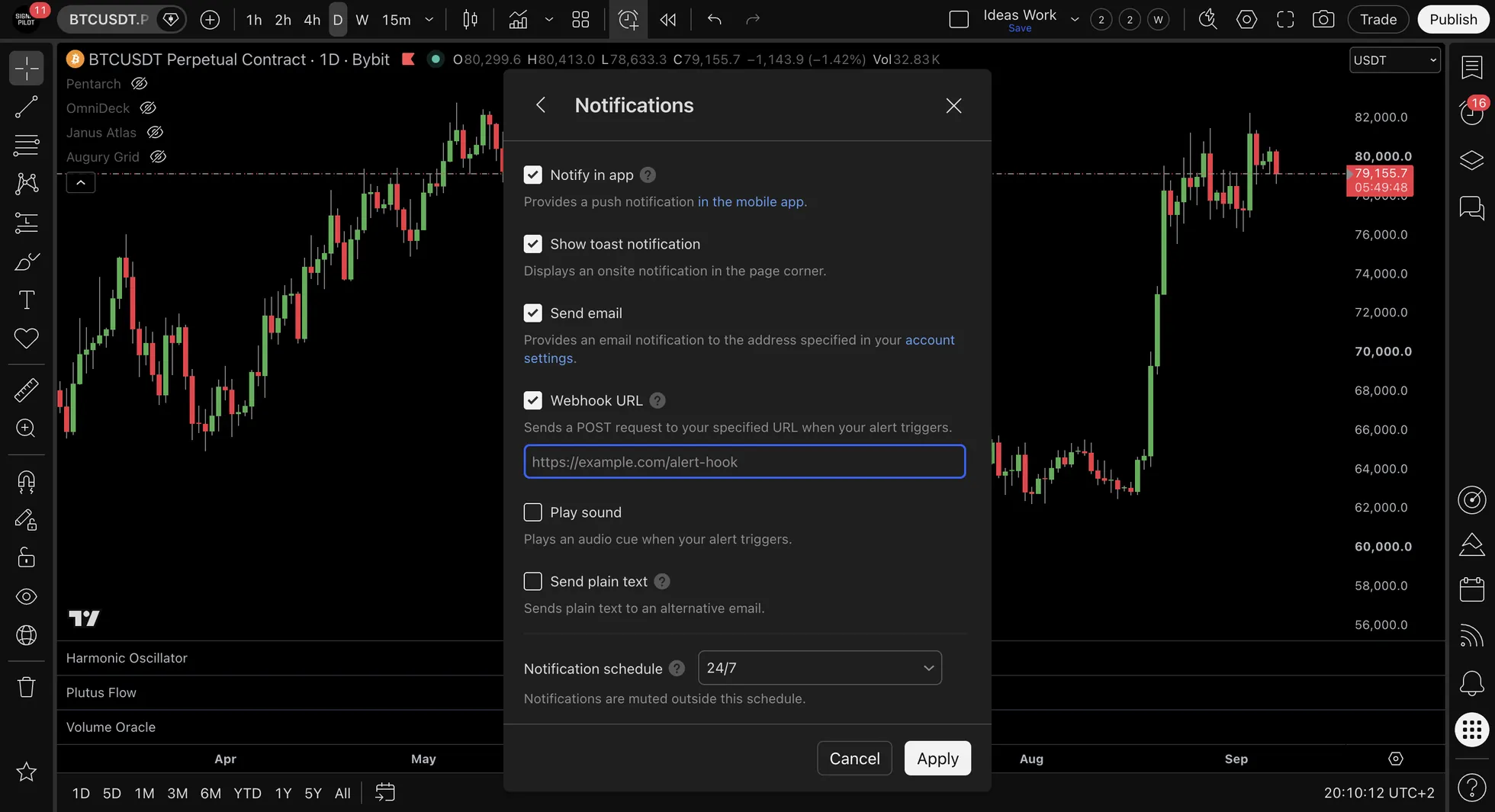
- On your chart with Signal Pilot indicator, click the Alert icon (clock with +)
- In the alert dialog:
- Condition: Select your Signal Pilot indicator and desired alert condition
- Options: Set "Once Per Bar Close" to avoid intrabar repaints
- Expiration: Set according to your needs (commonly "Open-ended")
- Scroll down to "Notifications" tab
- Check the "Webhook URL" box
- Paste your webhook endpoint URL
Step 3: Customize Alert Message (Optional)
In the "Message" field, you can customize what data is sent. TradingView supports placeholders:
{
  "indicator": "{{ticker}}",
  "price": "{{close}}",
  "time": "{{time}}",
  "signal": "Pentarch: IGN event",
  "timeframe": "{{interval}}"
}
Common TradingView Placeholders:
{{ticker}}: Symbol name (e.g., "BTCUSDT"){{close}}: Current close price{{time}}: Alert trigger time{{interval}}: Timeframe (e.g., "15", "1D"){{exchange}}: Exchange name
Step 4: Test the Webhook
- After creating the alert, click "Test" button in alert settings
- Check your webhook destination (Discord channel, webhook.site, etc.)
- Verify the message appears with correct formatting
- If nothing appears, check:
- Webhook URL is correct
- TradingView account has webhook access (Essential, Plus or Premium)
- Endpoint is accessible (not blocked by firewall)

💬 Message Format Examples
Discord-Formatted Message
{
  "content": "🔔 **Signal Pilot Alert**",
  "embeds": [{
    "title": "Pentarch: IGN event",
    "description": "IGN event printed on {{ticker}}",
    "color": 65280,
    "fields": [
      {"name": "Price", "value": "{{close}}", "inline": true},
      {"name": "Timeframe", "value": "{{interval}}", "inline": true},
      {"name": "Time", "value": "{{time}}", "inline": false}
    ]
  }]
}
Simple Text Message
Signal Pilot: {{ticker}} - Harmonic Oscillator regime change at {{close}} on {{interval}} timeframeStructured JSON for Custom API
{
  "alert_type": "signal_pilot",
  "indicator": "janus_atlas",
  "symbol": "{{ticker}}",
  "exchange": "{{exchange}}",
  "timeframe": "{{interval}}",
  "price": "{{close}}",
  "timestamp": "{{time}}",
  "condition": "Level Break Alert"
}
🌐 Common Webhook Platforms
| Platform | Use Case | Setup Complexity |
|---|---|---|
| Discord | Team notifications, logging | Very Easy |
| Telegram | Mobile notifications | Moderate (requires bot + bridge) |
| Make.com | Multi-service integration | Easy (visual workflow) |
| Zapier | Connect to 5000+ apps | Easy (visual workflow) |
| Webhook.site | Testing and debugging | Very Easy |
| Custom Server | Full control, custom logic | Advanced (programming required) |
🔍 Troubleshooting
- Is webhook URL set in alert? → If no, add the URL
- Does the alert fire? → If no, fix the alert first
- Tested with webhook.site? → If no, test there first. If fails, regenerate URL
- Is the format correct? → Check Discord/Telegram-specific formatting
- Is JSON valid? → Use a JSON validator to check syntax
- Do you have a paid TradingView plan? → Free accounts cannot use webhooks
Quick Test: Always test with webhook.site first. If it works there but not Discord/Telegram, the issue is your destination setup.
Webhook Not Received
- Verify TradingView plan: Free accounts cannot use webhooks
- Check URL: Ensure no extra spaces, correct protocol (https://)
- Test endpoint: Use webhook.site to verify TradingView can reach your URL
- Alert fired?: Check TradingView alert log to confirm alert actually triggered
Wrong Data in Message
- Placeholder syntax: Must use
{{ticker}}not{ticker} - JSON formatting: Validate JSON at jsonlint.com if using structured format
- Quote escaping: Use
\"for quotes inside JSON strings if needed
Too Many Webhooks (Spam)
- Alert frequency: Change from "Once Per Bar" to "Once Per Bar Close"
- Condition specificity: Use more specific alert conditions
- Cooldown period: Some webhook services have rate limits
🔒 Security Considerations
Important Security Notes
- Webhook URLs are sensitive: Treat them like passwords and avoid sharing publicly
- Rotate URLs periodically: Especially for critical automation
- Validate incoming data: If using custom server, verify requests come from TradingView
- HTTPS strongly preferred: Unsecured HTTP endpoints pose security risks
📋 Example Workflow
Scenario: Receiving Pentarch IGN alerts in a Discord channel
- Created Discord webhook in #trading-alerts channel
- Configured Pentarch v1.0 on BTCUSDT 15m chart
- Set alert on the "Pentarch: IGN event" condition
- Set to fire "Once Per Bar Close"
- Pasted Discord webhook URL in alert settings
- Customized message with Discord embed format (shown above)
- Tested alert - message appeared in Discord
- Alert now active - the channel receives a message each time an IGN event prints
(Historical workflow example for educational purposes only. Not financial advice. Individual results may vary.)